Welcome to Python
Learn Python for data visualization through interactive lessons, videos, and hands-on practice.
Skill Level: Beginner
Prerequisites: No prior programming experience required
Estimated Time: 20 minutes
Start Here
You are now ready to write your first lines of code.
At this point in the course, you do not need to understand everything about programming. You only need a simple place to begin. This lesson introduces the language and environment that will support the rest of your learning journey.
Python is widely used in data analysis, research, machine learning, and visualization. In this guide, you will use it step by step, starting with a very small program and gradually building toward working with real datasets.
What You'll Learn
By the end of this lesson, you will be able to:
- Explain why Python is used for data analysis and visualization.
- Understand why Google Colab is used in this guide.
- Create your first Google Colab notebook.
- Run your first Python program.
- Save and share your notebook.
Watch Before You Continue
Watch this short walkthrough before continuing. It introduces the Colab interface, shows how to create a notebook, demonstrates how to run a first line of Python, and explains how notebooks are saved in Google Drive.
Why Python
Python is one of the most widely used programming languages in the world.
- Easy to read
- Beginner-friendly
- Widely used in data science and machine learning
- Strong library ecosystem
- Useful in both research and industry
Why Google Colab
Google Colab helps you start coding without installing Python on your computer first.
- Runs in your browser
- No local installation required
- Saves notebooks to Google Drive
- Easy to access from anywhere
- Simple sharing workflow
Before You Open Colab
Think of Google Colab as a digital notebook for coding.
Just as you might write notes, solve problems, and organize ideas in a notebook for class, Google Colab allows you to write explanations, add code, run programs, and save your work in one place. You will use this same workflow throughout the course.
Your First Google Colab Notebook
Note: As Colab implicitly uses Google Drive for storing your notebooks, ensure that you are logged in to your Google Drive account before proceeding further.
1. Open Google Colab
Open the Colab website in your browser. If you are already signed in to your Google account, you will see the Colab welcome screen or notebook interface.
2. Create a new notebook
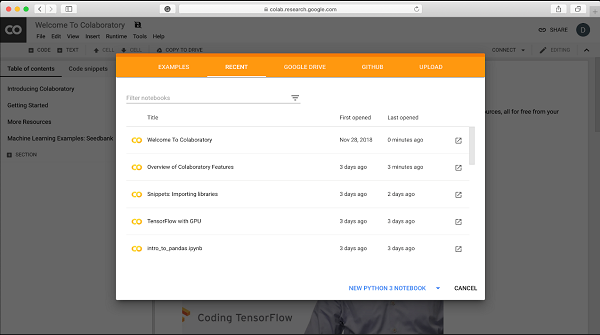
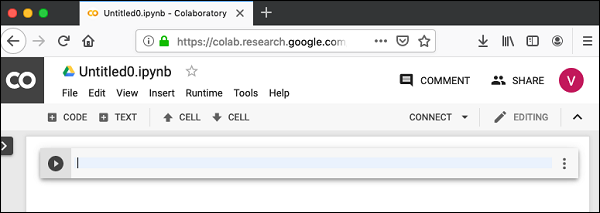
To start a new Python notebook from the Colab interface click on the NEW PYTHON 3 NOTEBOOK link at the bottom of the screen. A new notebook would open up as shown in the screen below. This gives you a fresh workspace where you can write and run Python code.
3. Rename your notebook
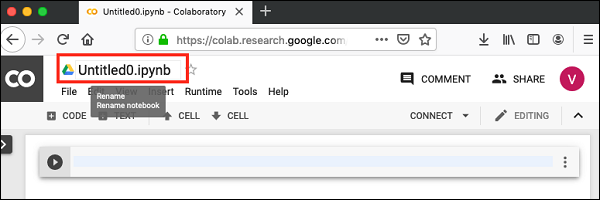
Click the default notebook title at the top of the page and replace it with a meaningful name such as MyFirstColabNotebook. Good notebook names make your work easier to find later.
4. Enter your first code
Type Python code into the first code cell. For example, you can use the following:
import time
print(time.ctime())
5. Run the code cell
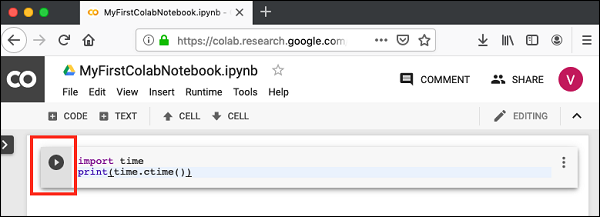
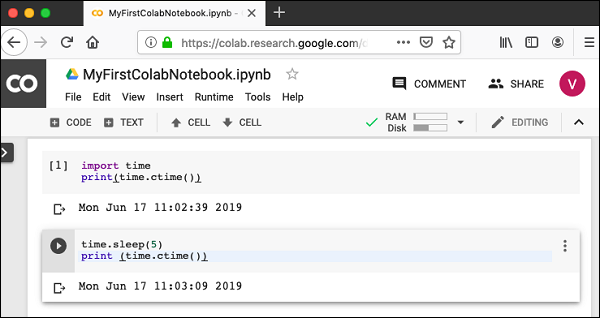
Click the run button on the left side of the cell. After a short moment, the output will appear directly below the code cell.
6. Add another code cell
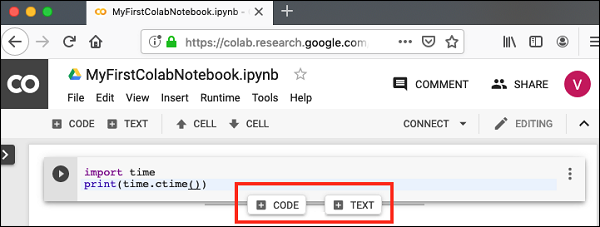
Add a new code cell so you can continue writing code in smaller, organized steps. You can use the interface buttons or the notebook controls to insert a new code cell below the current one.
7. Try a second example
In the new cell, enter another short example such as:
time.sleep(5)
print(time.ctime())
8. Run all cells
Colab can run the entire notebook from top to bottom. This is useful when your notebook has multiple cells that should execute in order.
9. Reorder cells when needed
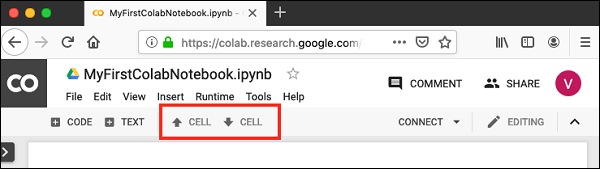
If your notebook grows larger, you may want to move cells up or down to keep the workflow organized. This helps you maintain a clean logical order as your notebook expands.
10. Delete a cell you no longer need
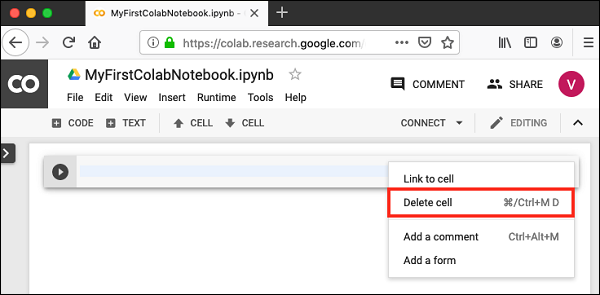
If you create an extra cell or no longer need one, delete it from the cell menu. Cleaning unused cells keeps your notebook easier to read and maintain.
Your First Python Program
Type the following code into a code cell:
print("Hello, World!")
Then click Run.
This line tells Python to display a message. The print() function is used to show output.
When you run the code, Python reads the instruction and displays the text inside the parentheses.
What Just Happened
You just wrote and executed your first Python program.
Even though this example is simple, it introduces an important idea: Python follows instructions exactly. As you continue learning, you will use Python to do much more than display text. You will use it to organize data, calculate values, answer questions, and create visualizations.
Every larger program starts with simple instructions like this one.
Practice
Modify the program so that it displays your own message.
Instead of:
print("Hello, World!")
try this:
print("Hello, I am learning Python!")
Run the cell again and observe the output.
Then try changing the message one more time using your own sentence.
Check Your Understanding
1. Why is Google Colab a good choice for beginners in this course?
2. What is one main reason Python is used in data analysis?
Try One More Step
Write a new print() statement that displays:
Data can tell a story.
Run the code and make sure the output appears correctly.
Key Takeaways
- Python is a beginner-friendly language widely used in data analysis and visualization.
- Google Colab allows you to write and run Python in your browser.
- A Colab notebook is the main environment you will use throughout this guide.
- The
print()function displays output. - Running a simple program is the first step toward writing more useful code.
In the next lesson, you will learn how Python stores information so that you can begin writing more meaningful programs.